

Making learning Greek even more fun starts with a personalized avatar! Follow these simple steps to let your child choose their own unique character:
Step 1: Log into the Platform
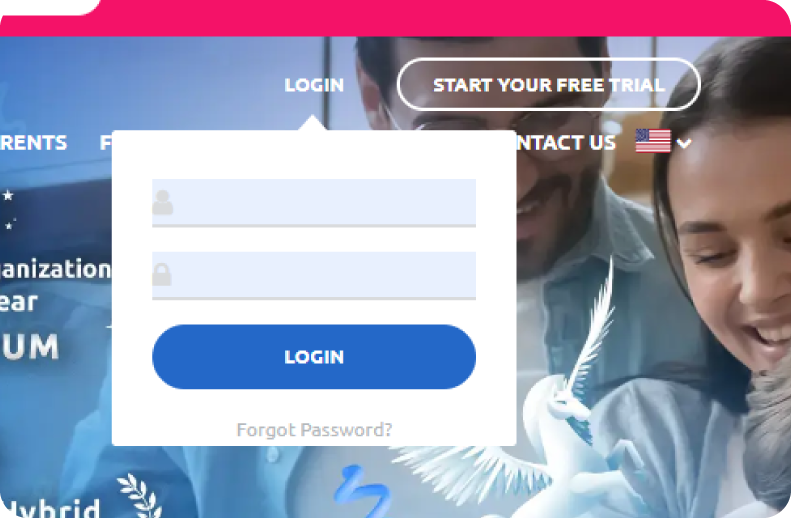
Go to ellinopoula.com and log in using your account credentials.
Step 2: Go to the Parent’s Dashboard

Once logged in, navigate to the Parent’s Dashboard. This is your central hub for managing your child’s learning experience.
Step 3: Click on “My Kids”

In the Parent’s Dashboard, find and click on the “My Kids” section. This will display a list of all the children associated with your account.
Step 4: Click on “Edit”
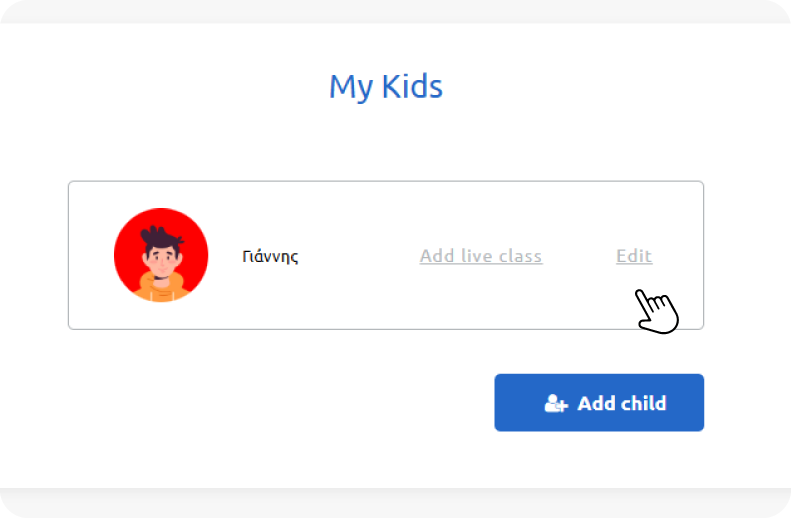
Next to your child’s name, click on the “Edit” button. This will allow you to make changes to their profile settings.
Step 5: Choose a New Avatar & Save!

Browse through the available avatars and select the one your child loves. After choosing, click “Save” to apply the new avatar.